
TaxTOC
How to sign in and watch your TaxTOC videos
Six steps, from the invite email to pressing play. Steps 2 and 4 happen only the first time.
- 1
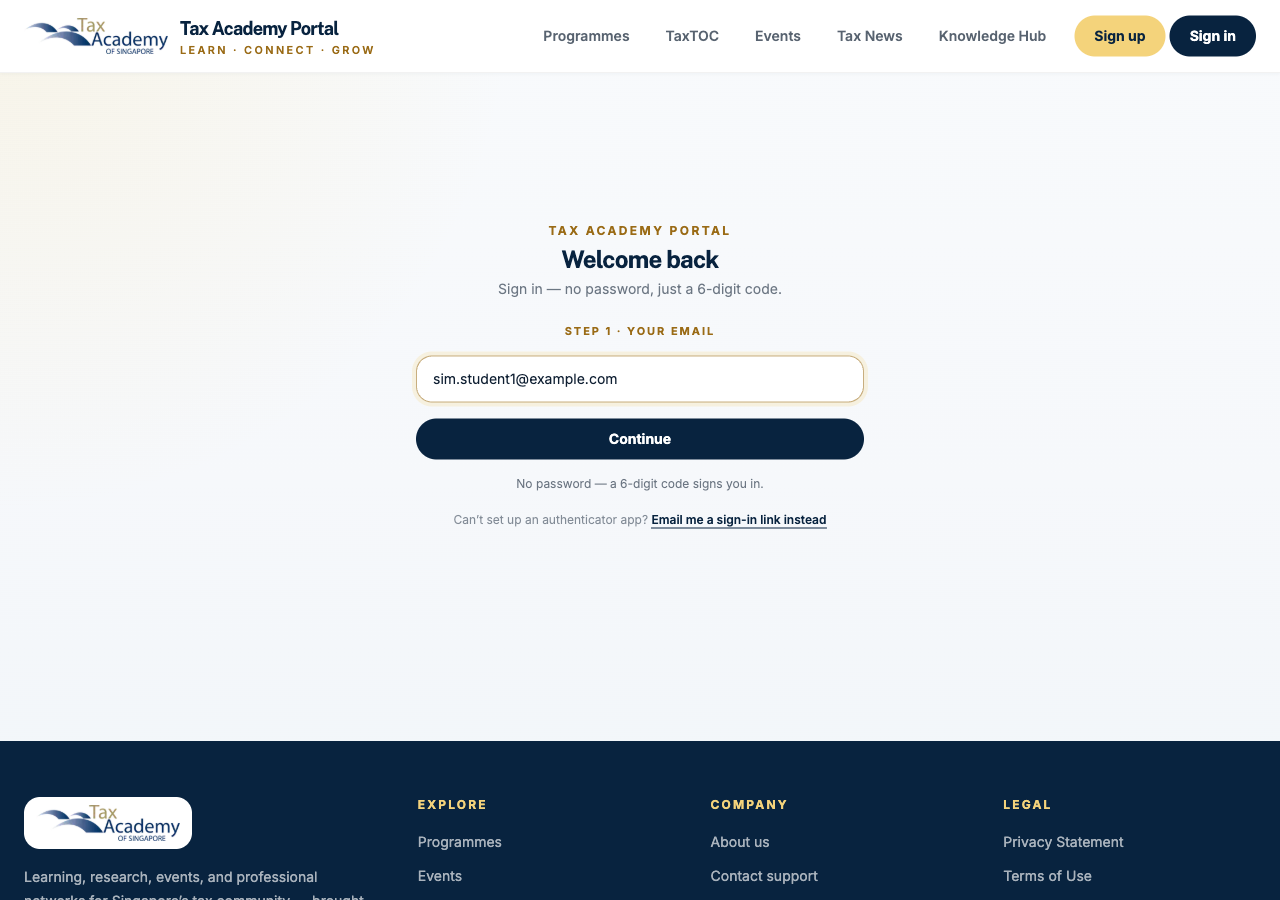
Open the link in your email
Your email address is already filled in. Press Continue.
- 2
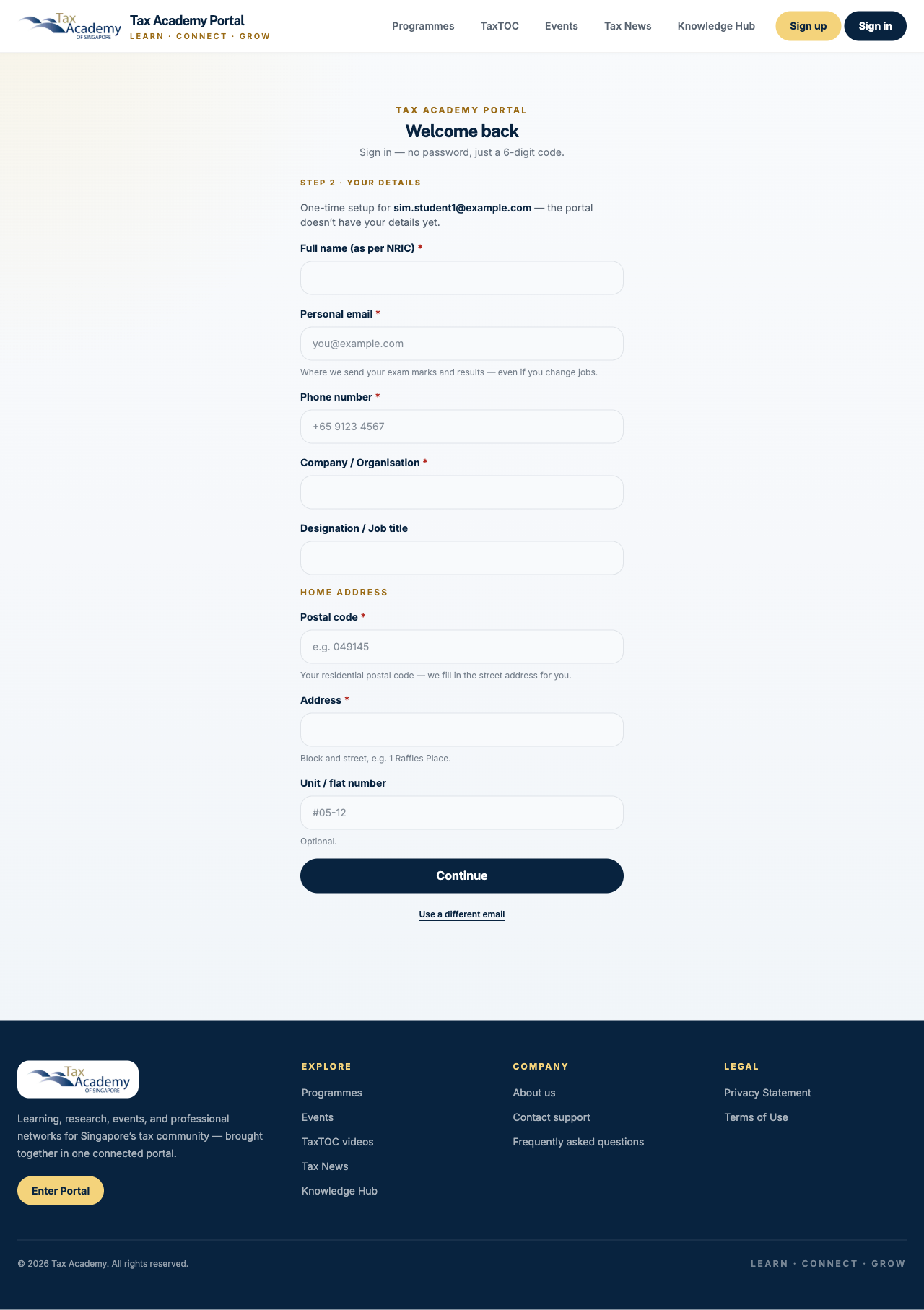
If we ask: fill in your details
Some people are asked for their details the first time: full name, personal email, phone number, organisation and home address. Fill them in and press Continue. If you do not see this screen, go to the next step.
- 3
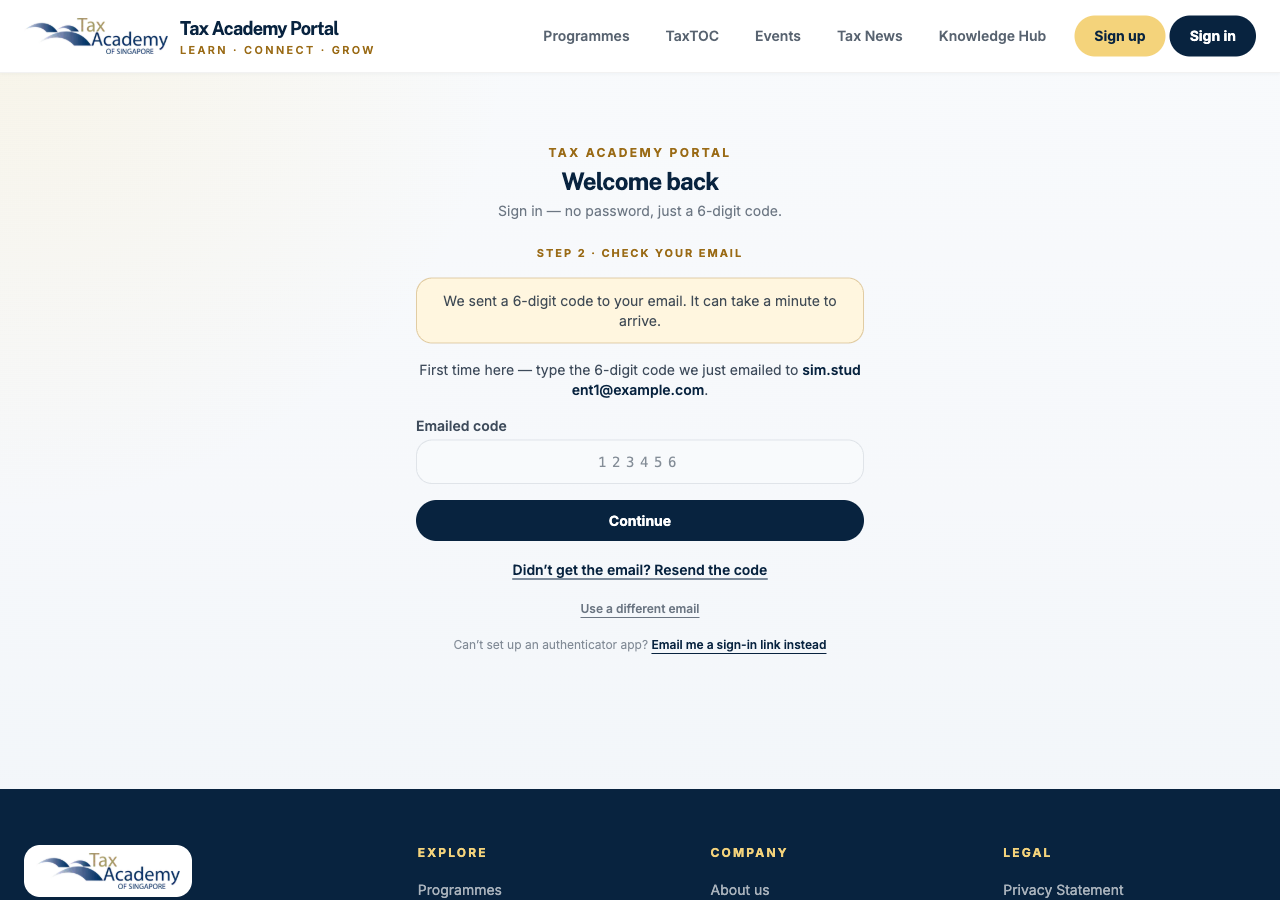
Type the 6-digit code we email you
Check your inbox for an email from Tax Academy. If it is not there after a minute, look in your spam or junk folder.
- 4
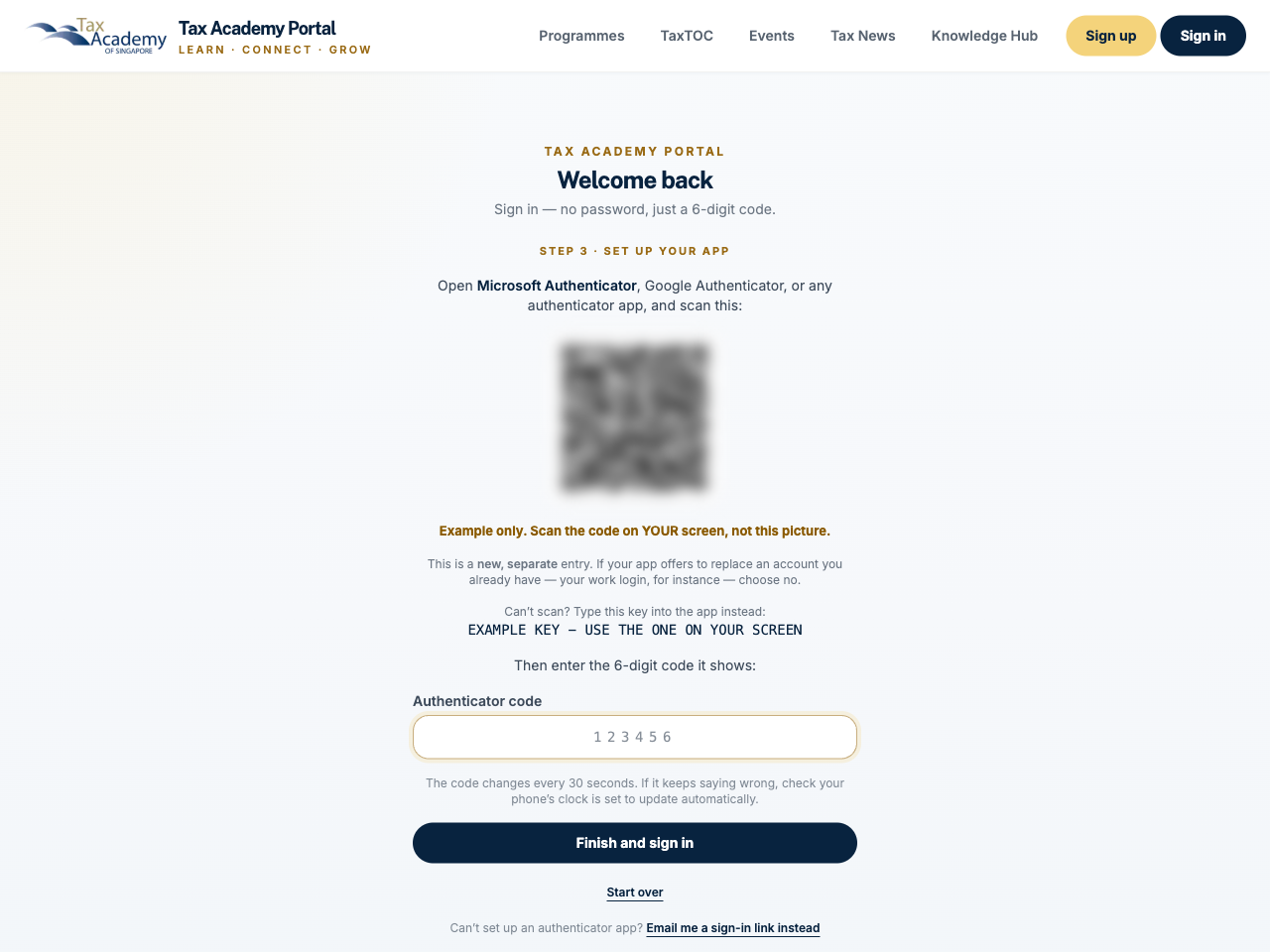
First time only: add Tax Academy to an authenticator app
Install Microsoft Authenticator or Google Authenticator on your phone. Both are free. On a computer, open the app, tap +, and scan the QR code on the screen. On your phone, tap the button to add Tax Academy straight to the app. Then type the 6-digit code the app shows.
No authenticator app, or cannot install one? Press "Email me a sign-in link instead" and open the link we email you.
- 5
You land on TaxTOC
You arrive on the TaxTOC page. Your videos are in the International Tax row, the first row below the banner: Session 1 and Session 2. Press Session 1 to start.
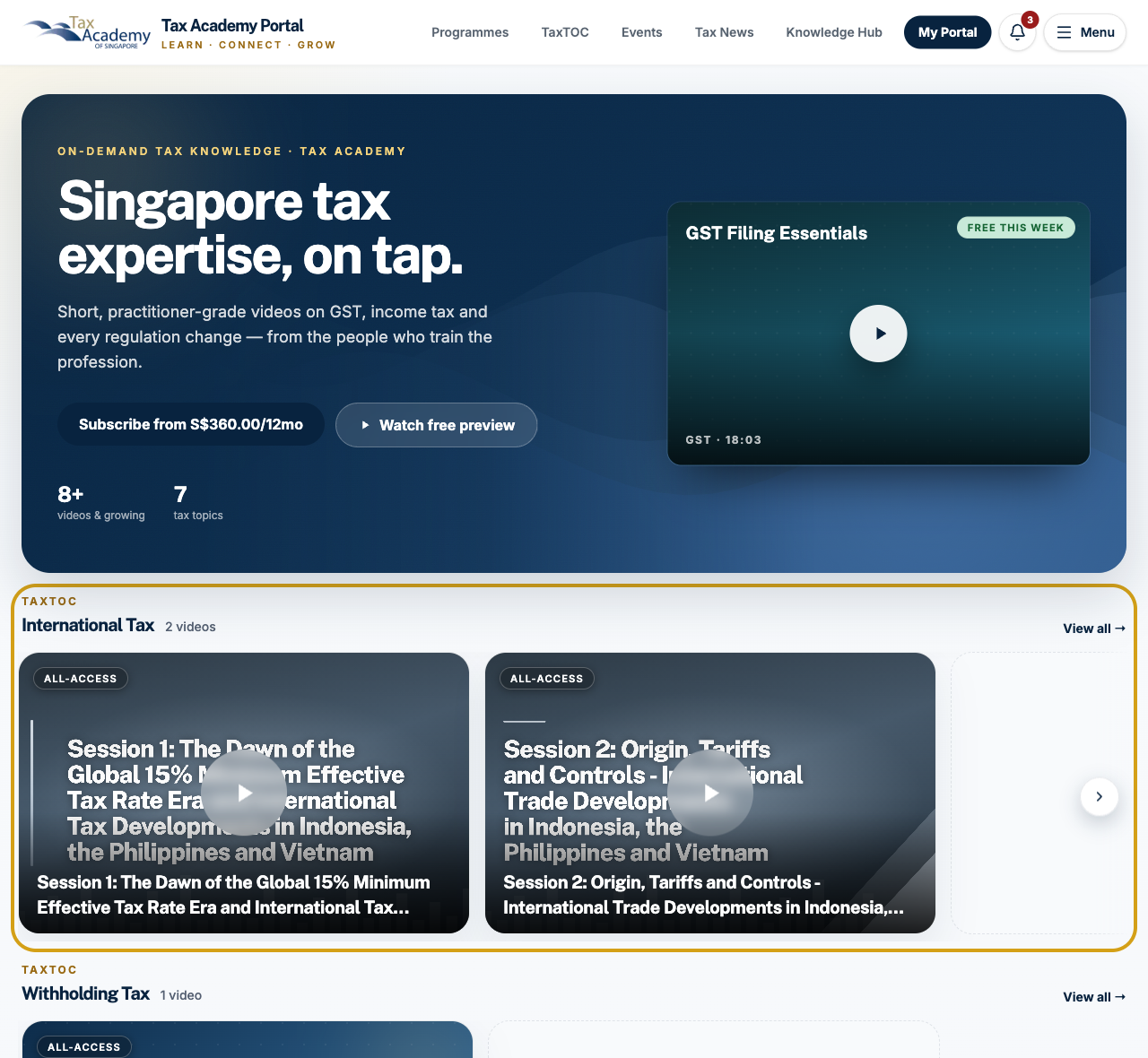
- 6
Press play
The video opens in the player. When you finish, Session 2 is waiting under "Up next" on the right.

Next time you sign in
- On the same computer: open your authenticator app and type its 6-digit code.
- On a new computer: type the code we email you, then the code from your app.
- New phone, or deleted the app? Contact us and we will reset it for you.
Having trouble? Contact support.